Connecting Bexio
ChronoFlow uses Bexio OAuth (OIDC) for both authentication and invoice access. When you sign in with Bexio, you authorise ChronoFlow to read and update your invoices on your behalf.
How the OAuth flow works
- You click Sign in on the ChronoFlow homepage.
- You are redirected to Bexio’s authorisation server.
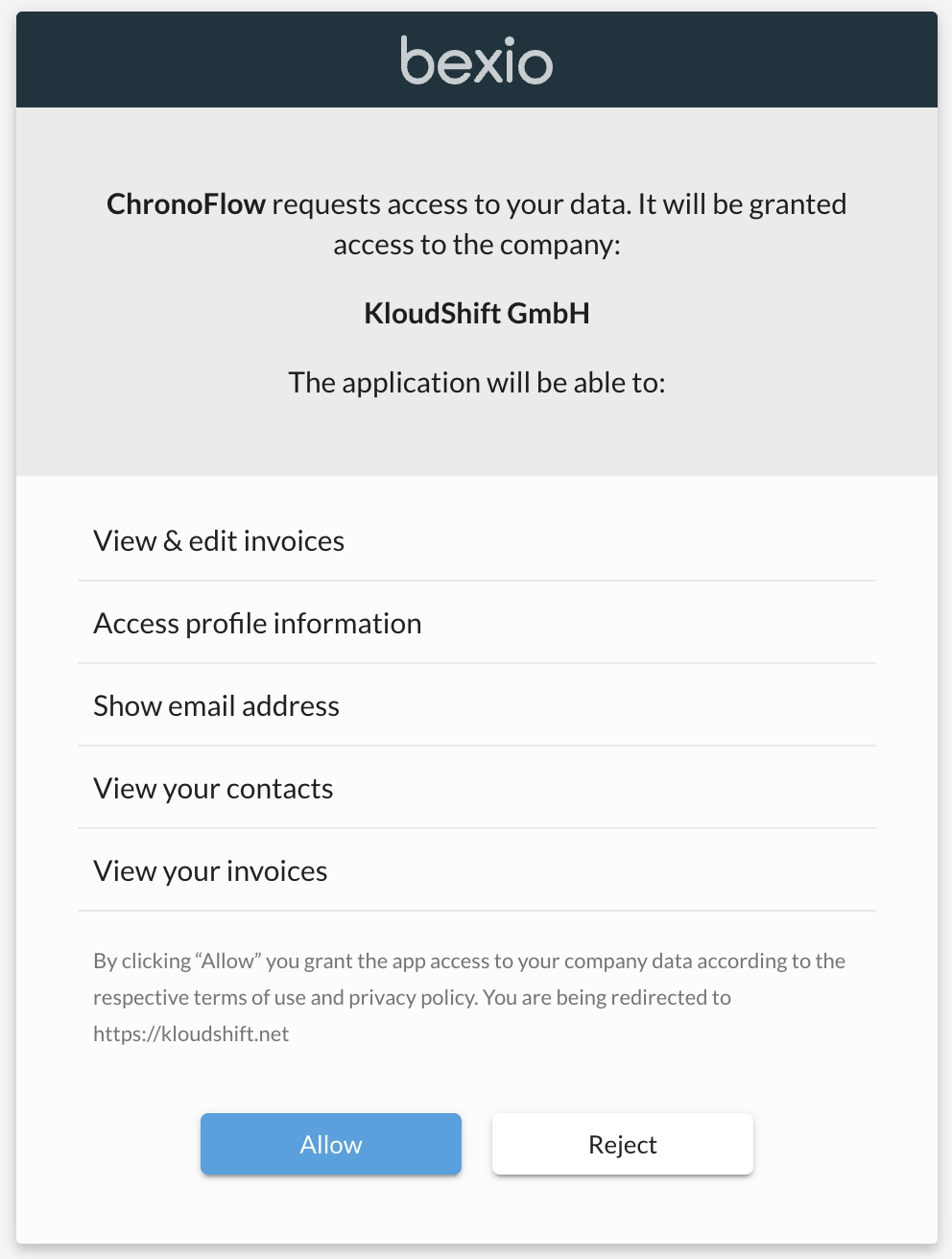
- You log in to Bexio (if not already) and click Allow.
- Bexio redirects you back to ChronoFlow with an access token and refresh token.
- ChronoFlow stores the refresh token securely so future API calls work without asking you to re-authenticate.
Upon first login, you’ll be asked to grant ChronoFlow access to your Bexio account.
Token refresh Bexio access tokens expire after a short period.
ChronoFlow automatically refreshes them in the background before they expire. You should never be asked to re-authorise unless:
- You revoke the ChronoFlow app in your Bexio account settings.
- The refresh token expires due to very long inactivity.
If your session stops working, simply sign out and sign back in.
Required Bexio permissions
ChronoFlow requests the minimum scopes needed to function, these are:
| Scope | Purpose |
|---|---|
openid profile email | Identity (login) |
kb_invoice_show | Read invoices |
kb_invoice_edit | Add line items to invoices |
contact_show | Read contact information for new invoices |
article_show | Read list of products to create product positions |
Revoking access
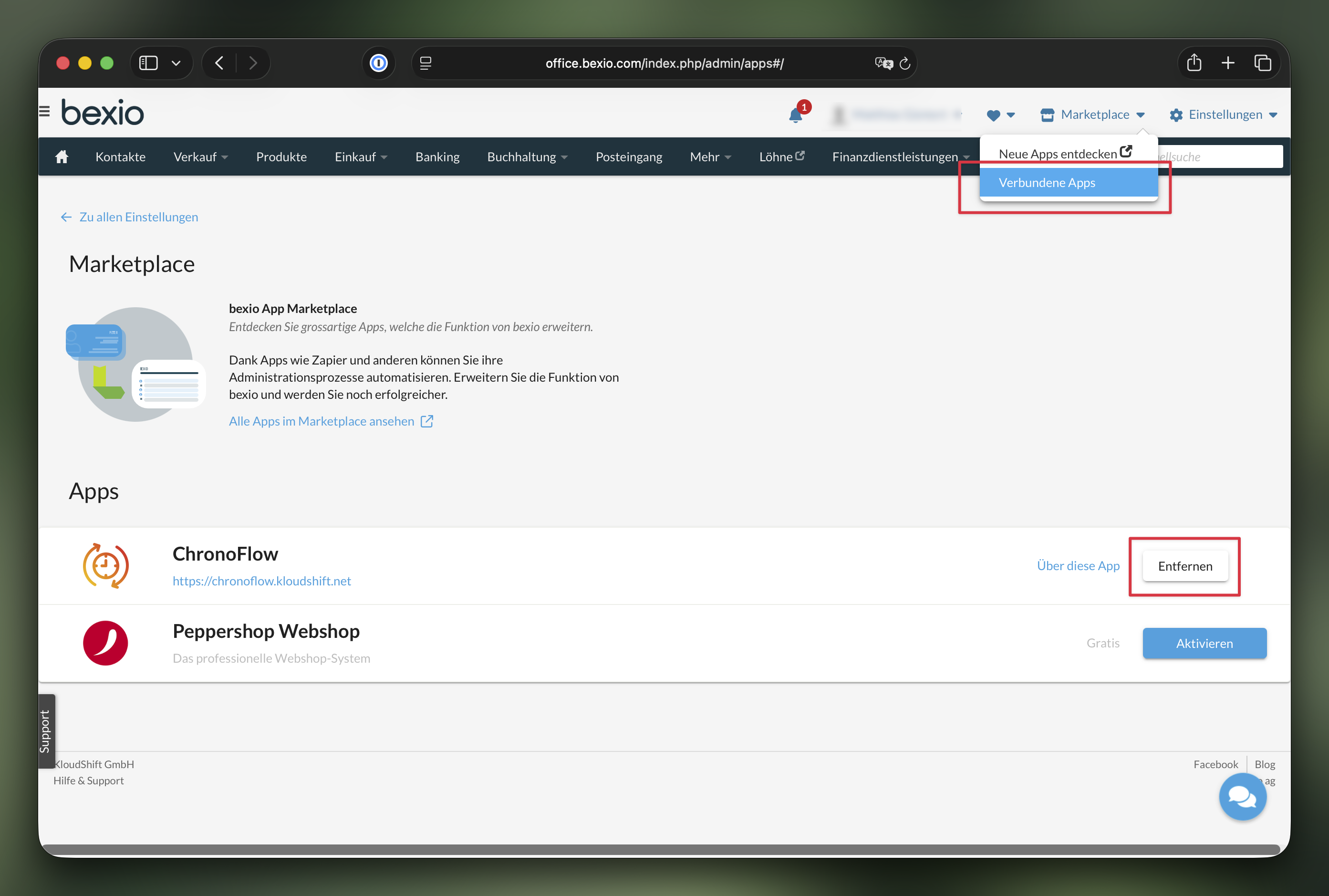
To disconnect ChronoFlow from your Bexio account:
- Log in to Bexio and go to Marketplace → Connected Apps.
- Find ChronoFlow and click Revoke.
Your ChronoFlow account data is not deleted by revoking OAuth access - only the ability to sync invoices is removed.